Safety
Please read the following before use to ensure safety and extend the device’s lifespan.
- Charge the device using the included magnetic charger and a compliant power adapter.
- Do not use or store the device for long periods in hot, humid, or dusty environments.
- The device contains a built-in lithium battery; do not disassemble, crush, puncture, or dispose of it in fire.
- Do not disassemble the device yourself; doing so may cause damage and void the warranty.
- When recording others, comply with local laws and respect their privacy.
Get to Know Your LUCI PIN
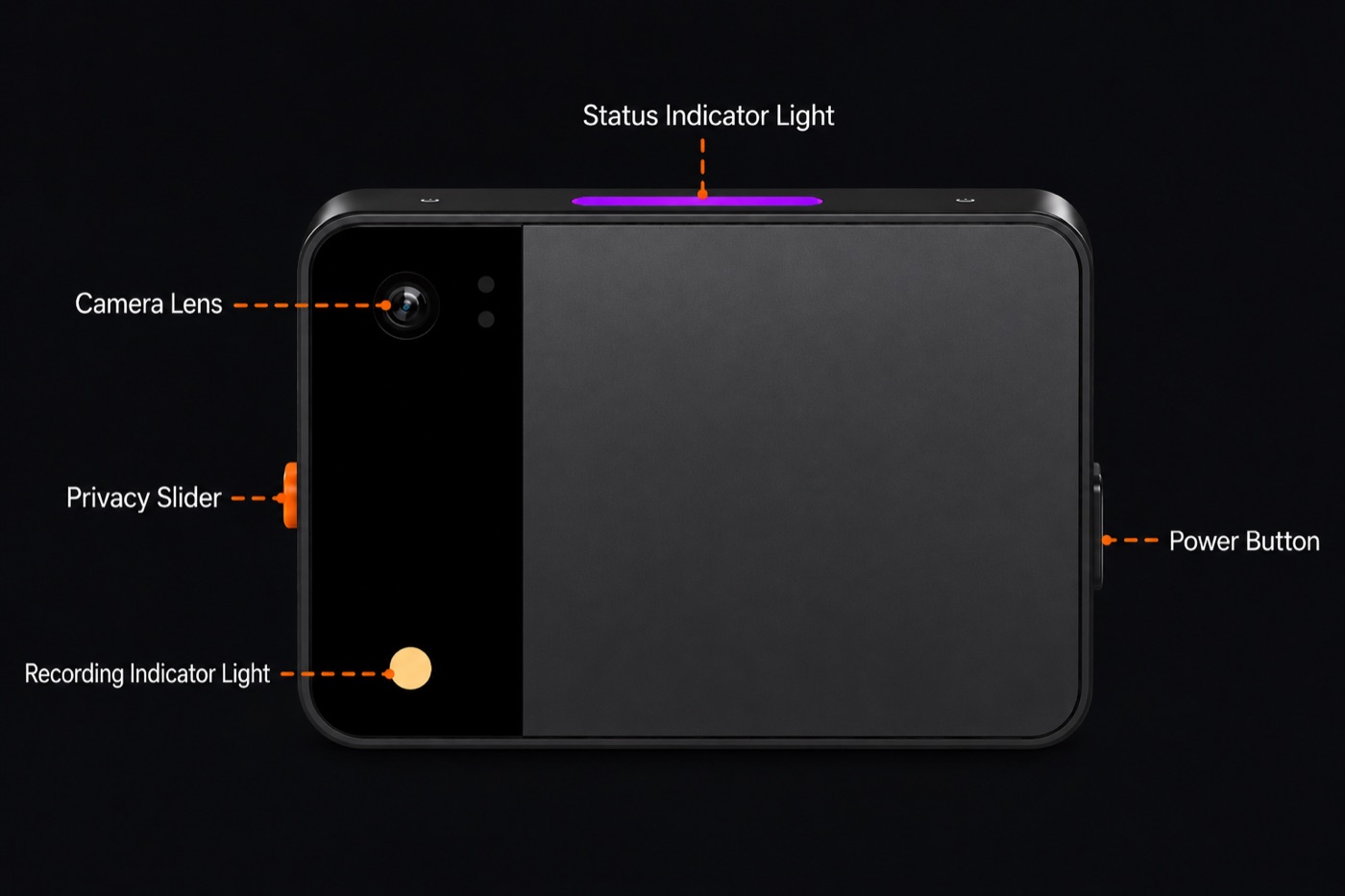
Main Components
| Component | Description |
|---|---|
| Camera | For video recording. |
| Privacy slider (lens cover) | A physical cover over the lens. It normally covers the camera for privacy; when the device is on, sliding it open exposes the lens and starts recording, and closing it stops recording. |
| Power button | Power on/off, wake, double-tap (switch to HD recording / record audio), triple-tap for voice chat, reset, and more (see Chapter 04). |
| Status indicator | Shows device status through color and pattern (see Chapter 04). |
| Recording indicator | Lights up while recording to show that video is being captured. |
How the Device Works with the App
LUCI PIN connects to the phone app via Bluetooth for pairing, status, and commands, and uploads recorded video to the cloud for AI analysis via Wi-Fi. Together they let you view memories, AI chat, and daily recaps in the app.
How to Use
Charging
LUCI PIN uses magnetic charging. Use the official charger: one end is USB-C, the other attaches magnetically to the device. The charger has a front and back — the side with the indicator light is the front.
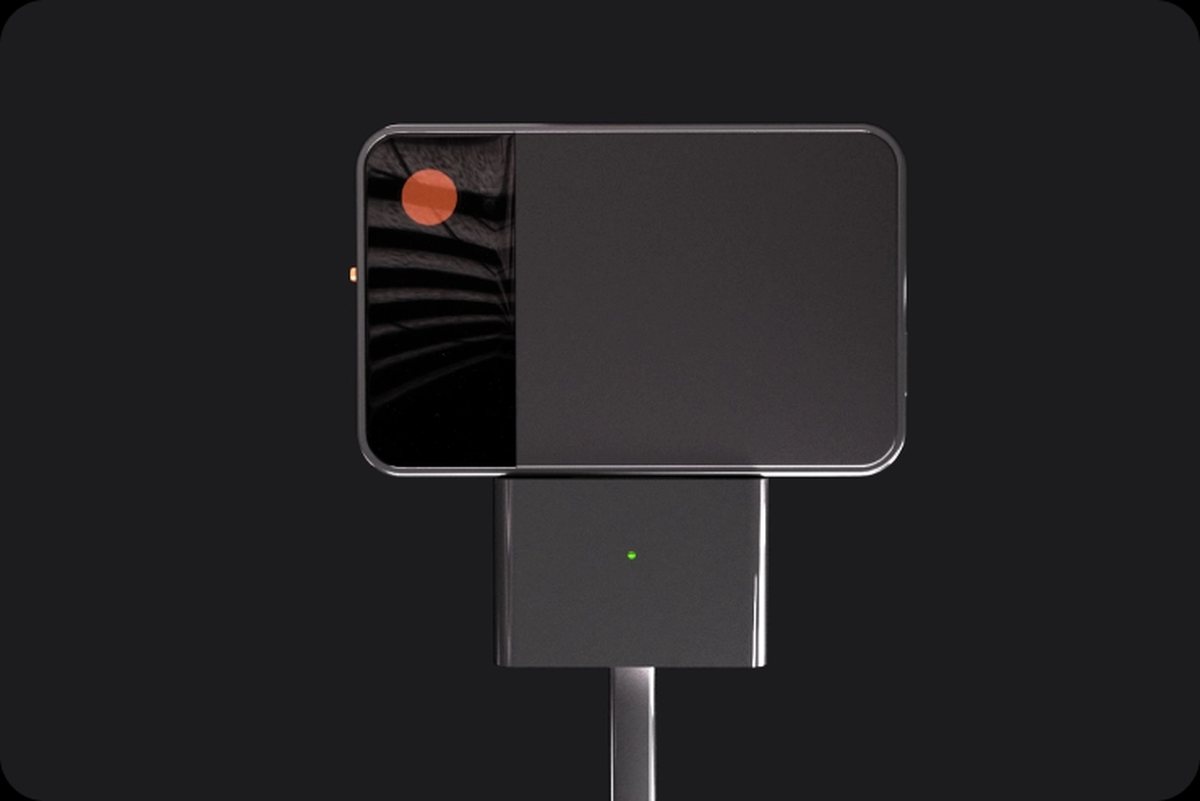
- Plug the charger’s USB-C end into a power adapter or power source.
- Attach the charger to the bottom of the PIN, making sure the side with the indicator light faces up (the same side as the camera); otherwise it won’t charge.
- Once powered, the device indicator shows a pulsing green light while charging, and solid green when fully charged.
- If charging while powered off, check the charger’s indicator: solid green = charging, solid blue = fully charged.
- When the battery is below 20%, the indicator flashes red — charge it soon. Fully charge before first use.
Power On / Off
| Action | How |
|---|---|
| Power on | Press and hold the power button for 2 s; a startup tone and a white breathing light mean it’s on. |
| Power off | Press and hold for 5 s; a shutdown tone plays and the orange breathing light flashes, then turns off. |
| Force shutdown | Press and hold the power button for 10 s. |
Reset
Press the power button 5 times in quick succession, then hold on the 6th press until the indicator turns to a blue breathing light — reset is complete and the device enters pairing mode.
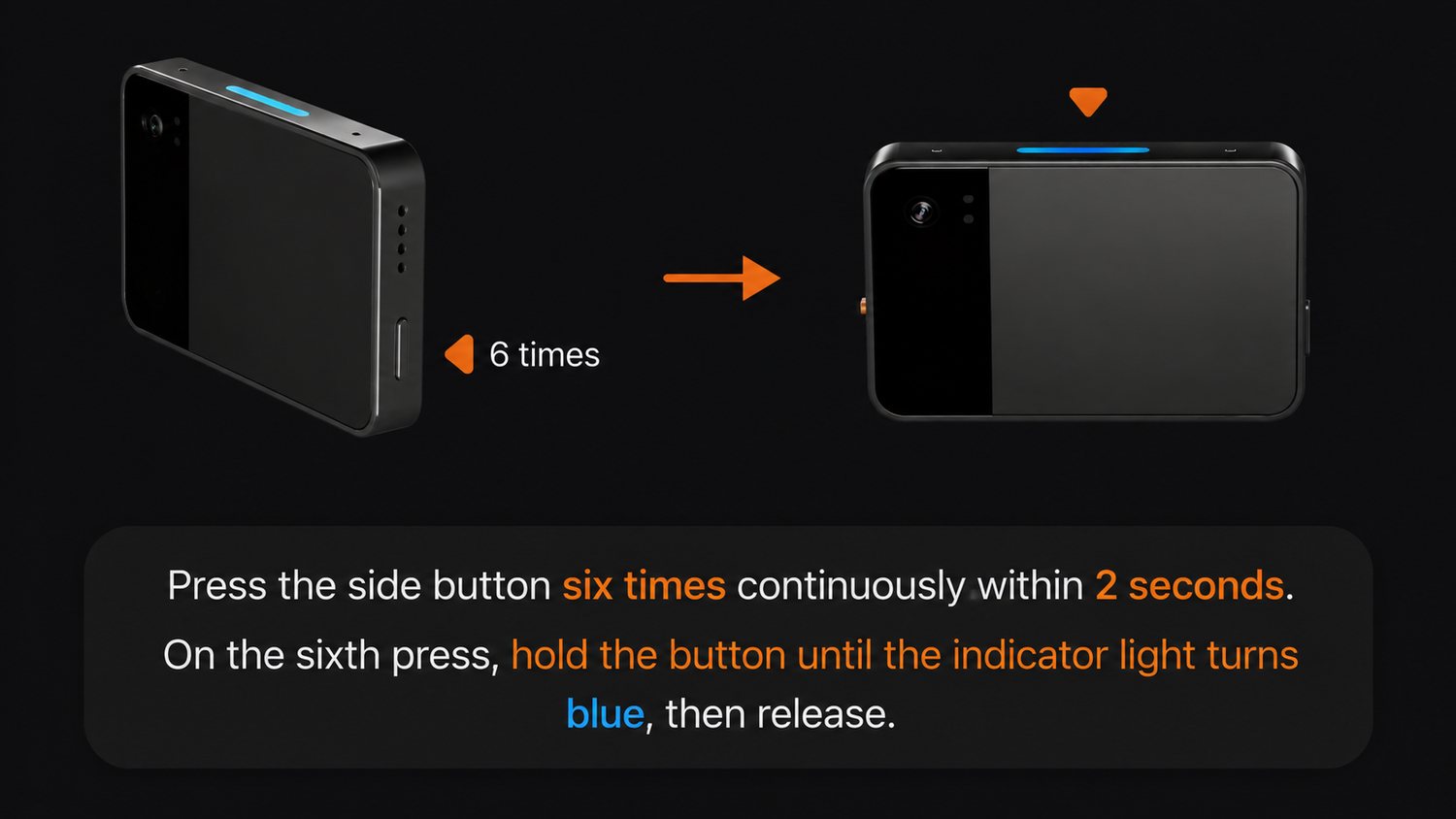
Reset unpairs the device and restores factory settings; after unpairing you usually need to reset before pairing again.
Pair with the LUCI AI App
- Search for, download, and install the LUCI AI app.
- Open the app, sign up or log in, and grant permissions as prompted.
- Make sure the device is on and in pairing mode (blue breathing light), with your phone’s Bluetooth on.
- On the device page in the app, tap Add new PIN; once it finds your PIN, pairing succeeds.
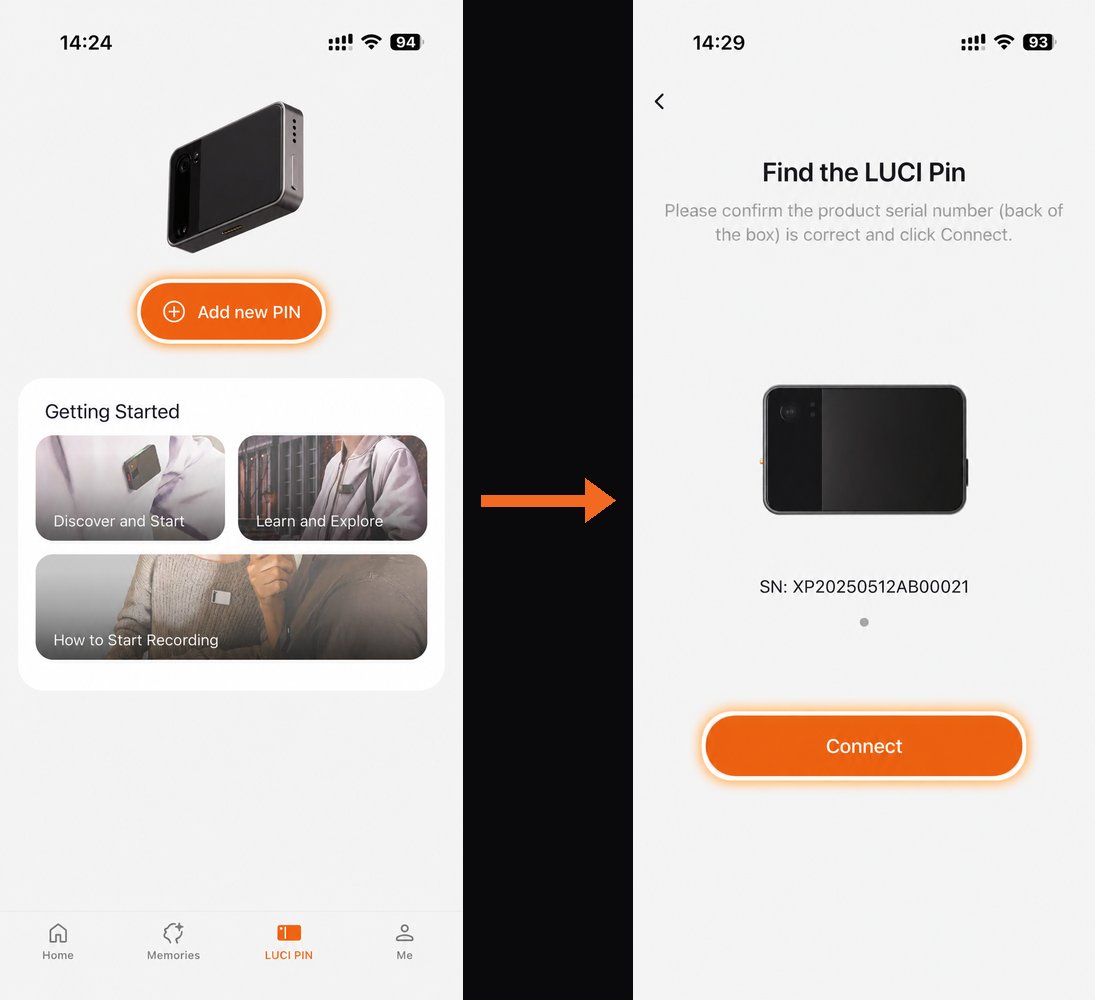
Switch device: on the device page, select another powered-on device to switch.
Unpair: go to Settings and tap Unpair at the bottom; after unpairing, reset the device (Chapter 03).
Wi-Fi Setup
- Open the device page and tap Wi-Fi.
- Select your Wi-Fi from the list, enter the password, and connect.
- Once connected, a Wi-Fi icon appears at the top of the page.
Recording Video
When the device is on, slide open the privacy slider over the lens to expose the camera and start recording; close it to stop. Recorded content can be uploaded to the cloud over Wi-Fi.
There are two recording modes, Lifelog and HD: sliding the cover open records Lifelog by default; double-tap the side button while recording to switch to HD.
| Mode | Description | Status light | Recording light |
|---|---|---|---|
| Lifelog | Continuous low-frame-rate recording, ideal for all-day logging. Content goes to Record in the app, where AI segments it and generates key frames and summaries for “conversation” scenes. | Green breathing | Solid |
| HD | High-frame-rate HD recording, ideal for capturing important moments clearly. Content goes to Capture in the app, where you can watch it directly. | Purple breathing | Flashing |
Recording Audio (Voice Notes)
- Double-tap the power button to start an audio-only recording; the indicator shows a slow green breathing light. Double-tap again to stop.
- When recording ends, audio syncs to the app automatically over Bluetooth. Bluetooth transfer is slow in the current version, so switching to Wi-Fi during sync is recommended for faster transfer.
- Once synced, it uploads to the cloud for processing and Notes are generated automatically, which you can view, copy, or export in the app.
Talk to LUCI
- Triple-tap the power button to start a voice conversation with LUCI; the indicator stays solid purple during the conversation. Triple-tap again to end it.
- This feature requires the Pin to be connected to Wi-Fi.
Sleep & Wake
- When on and idle, the indicator shows a white breathing light.
- After a period of inactivity it enters low-power sleep and the indicator changes to a slow white breathing light; the device disconnects from the phone.
- Single-tap the power button to wake the device.
Device Settings
In the LUCI PIN tab of the app, you can configure the device.
Settings
- Rename the device.
- View the device serial number (SN).
- Unpair the device (after unpairing, reset it before pairing again).
Capture
- Change the HD recording specs, including resolution and frame rate.
- Adjust the status indicator brightness.
- Adjust the Pin’s speaker volume.
- Check the device’s storage usage.
Indicators & Buttons
Status Indicator
| Indicator | Meaning |
|---|---|
| White breathing | Powered on, standby |
| Slow white breathing | Sleep (low power); disconnects from the phone — single-tap the power button to wake |
| Blue breathing | Pairing mode, waiting to connect to the app |
| Fast blue flashing | Firmware updating |
| Green breathing | Recording Lifelog video |
| Slow green breathing | Recording audio (Voice Notes) |
| Flashing green | Charging |
| Solid green | Charging complete |
| Purple breathing | Recording HD video |
| Solid purple | AI conversation in progress (triple-tap; requires internet) |
| Flashing red | Battery below 20% — charge soon |
| Solid red | Firmware update failed |
| Flashing orange | Storage full — recording unavailable; free up space |
Recording Indicator
| State | Meaning |
|---|---|
| Solid | Recording Lifelog video |
| Flashing | Recording HD video |
| Off | Not recording |
Button Actions
| Action | Function |
|---|---|
| Hold power 2 s | Power on (startup tone + white breathing light) |
| Hold power 5 s | Power off (shutdown tone + orange breathing light flashes, then off) |
| Hold power 10 s | Force shutdown |
| Single-tap (when asleep) | Wake the device |
| Double-tap | Slider open (recording) → switch to HD (purple breathing); slider closed → start/stop audio recording (Voice Notes, slow green breathing) |
| Triple-tap | Start/end a voice chat with LUCI (needs Wi-Fi); indicator solid purple |
| Tap 5×, then hold on the 6th until blue breathing | Reset the device (unpair / factory reset, enter pairing) |
FAQ
Q:The app can’t find the device / can’t connect?
A:Check that: (1) the device is on; (2) your phone’s Bluetooth is on and the app has Bluetooth/Location permissions; (3) the device is near the phone and not asleep (sleep disconnects it — single-tap the power button to wake); (4) re-select or add the device on the device page.
Q:The indicator is flashing red?
A:This means the battery is below 20%. Charge it soon with the official magnetic charger.
Q:What if it won’t charge at all?
A:Make sure the charger’s magnetic orientation is correct — the side with the indicator light must face up (same side as the camera), or it won’t charge; also make sure the USB-C end is plugged into power and the charger is firmly attached. When charging normally, the device indicator should be green breathing.
Q:Slow white breathing and unresponsive?
A:The device is in low-power sleep. Single-tap the button to wake it.
Q:The device is unresponsive / frozen?
A:Press and hold the power button until it shuts down, then turn it back on; if that doesn’t help, reset the device and re-pair the app.
Q:How do I fully erase the device’s data?
A:Unpairing does not erase data; you need to reset the device.